CLI Commands
ScriptSense comes with a Command Palette within the toolbar to manage your projects.
Square brackets, [], mean the item is required.
(), mean the item is optional.
Core & General
scan
Runs the Path Doctor to scan the project for errors and dead code.
- Usage: scan (Name)
- Options:
- Name: Scan a specific instance and its descendants. If Name is omitted, scans the current selection if any; otherwise scans the active script; otherwise scans the whole game.
help
Lists all commands or explains a specific one.
- Usage: help (PageNumber) OR help (CommandName)
- Example: help rename
docs
Opens the internal knowledge base (GitHub Pages).
- Usage: docs (CommandName)
- Options:
- If
CommandNameis omitted, opens the docs homepage. - If
CommandNameis provided and matches a command module, opens thecommandspage anchored to that command section. - Matching is case-insensitive.
- If
- Example:
- docs
- docs scan
clear
Clears the terminal output.
- Aliases: cls
about
Displays the welcome screen, version info, and credits.
- Aliases: info, version
changelog
View the latest plugin updates and version history.
- Aliases: updates, changes, news
report
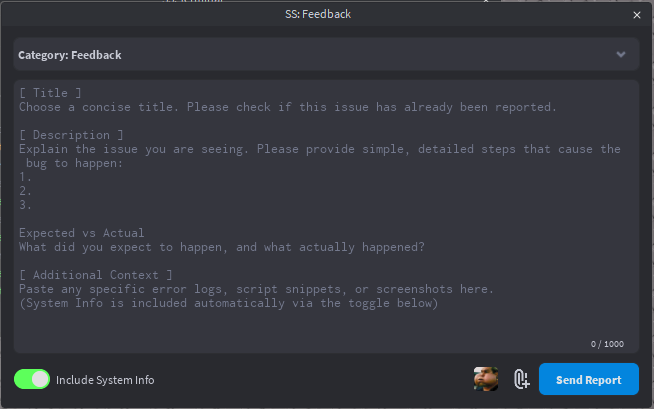
Sends feedback, bug reports, or suggestions to the author.
- Usage: report (Message)
- Options:
- If Message is omitted, opens the Feedback UI.
- You can prefix the message with bug, suggestion, or security.
- Example: report bug The terminal is flickering
- Example:
- Aliases: feedback, bug, suggestion, -n
- More: Reporting & Feedback
Refactoring & Code Editing
fix
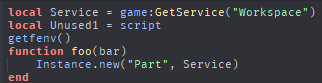
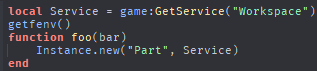
Auto-fixes unused imports AND deprecated API calls.
- Usage: fix (Name) (-y)
- Options:
- Name: Target script or module. Defaults to active script.
- -y: Auto-confirm all changes without preview.
- Aliases: clean, optimize, repair
- Example:
- Before:
- After:
- Before:
rename
Safely renames a module and updates all require() calls referencing it.
- Usage: rename [OldName] [NewName] (-y)
- Example: rename DataManager PlayerData
extract
Extracts the currently selected code into a new local function.
- Usage: extract (FunctionName)
- Aliases: func, ex
- Note: Select the code lines in the editor before running.
guard
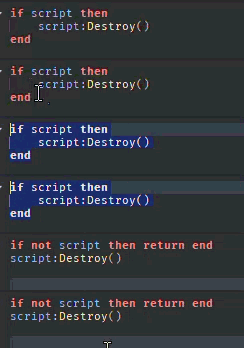
Converts a nested if statement into a guard clause (inverts logic and un-nests).
- Usage: guard
- Aliases: invert, unest
- Note: Highlight the if … then line before running.
- Example:
wrap
Wraps the selected code block in a specific statement (if, pcall, spawn, etc).
- Usage: wrap [type]
- Types: if, pcall, spawn, do, while
- Aliases: surround
lift
Moves all nested require statements to the top of the script.
- Usage: lift
- Aliases: hoist, raise
sort
Alphabetizes selected lines and ensures correct comma formatting. Useful for tables.
- Usage: sort
- Aliases: alphabetize, order
strip
Removes comments and empty gaps from the selected script.
- Usage: strip
- Aliases: nocomments, clean
fmt
Toggles a table between Single-Line and Multi-Line formatting.
- Usage: fmt
- Aliases: format, table
- Note: Highlight the table brackets { … }.
infer
Generates a Luau export type definition from the selected table.
- Usage: infer (TypeName)
- Aliases: type, gen
ignore
Attaches or removes the “SS_IgnoreCheck” attribute, preventing ScriptSense from scanning the script.
- Usage: ignore (Name) (-n)
- Options:
- -n: “Un-ignore” mode (Removes the attribute).
- -y: Auto-confirm.
- Aliases: ignores, ign
Navigation & Search
go
Opens a script, optionally at a specific line.
- Usage: go [Name] (Index) (:Line)
- Examples:
- go DataHandler (Opens script)
- go DataHandler:50 (Opens at line 50)
- go Script 2 (Opens the 2nd script named “Script”)
- Aliases: goto, open
jump
Jumps to a function definition within the currently active script.
- Usage: jump [FunctionName]
- Aliases: goto_func, func
refs
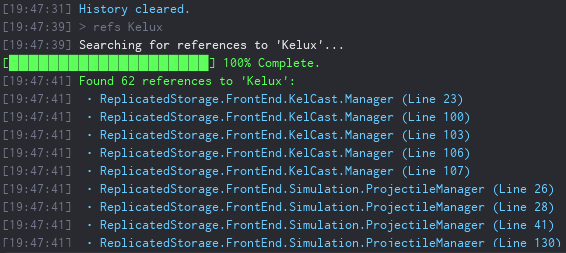
Finds all scripts requiring a specific module.
- Usage: refs [Name]
- Aliases: findrefs, usages
- Example:
tasks
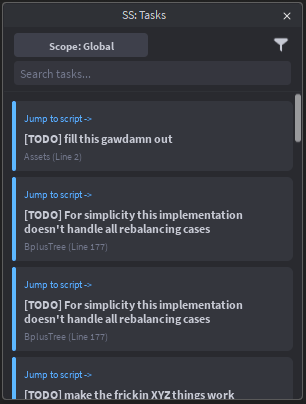
Aggregates all TODO, FIXME, and HACK comments into a centralized hub.
- Usage: tasks (global|local)
- Options:
- local: show tasks for the currently open script.
- global: show tasks across the entire project.
- Example:
- Aliases: todo, board
- More: Tasks Hub
Analysis & Visualization
dashboard
Shows a high-level overview of Project Health, Tasks, and Network stats.
- Usage: dashboard
flow
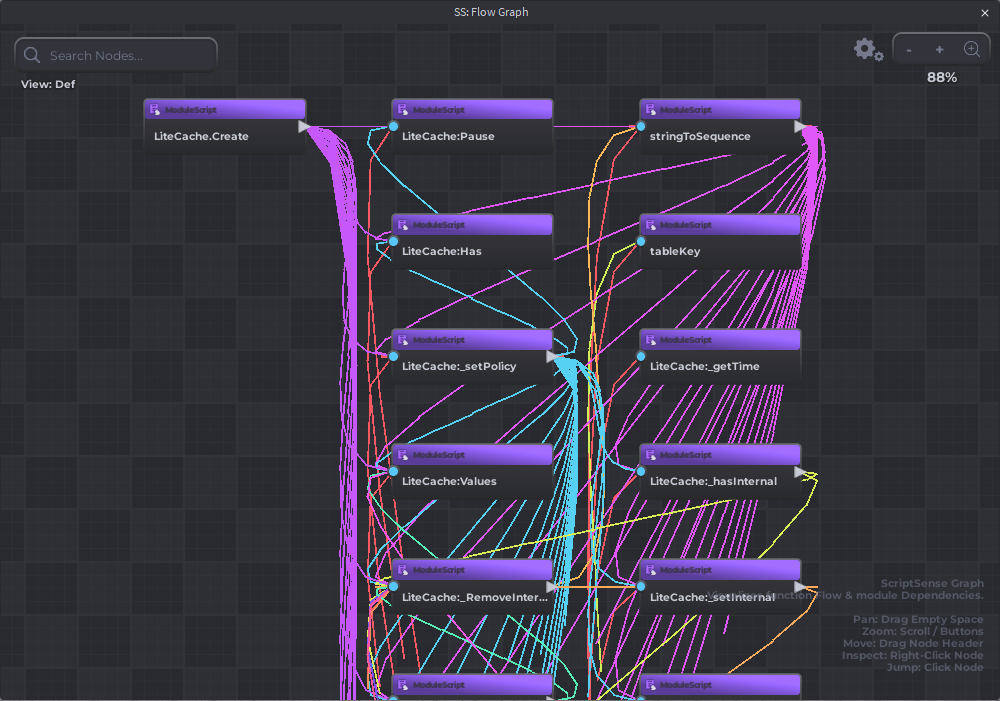
Visualizes function call flow as a node graph.
- Usage: flow (Name)
- Aliases: graph, calls
- Example:
tree
Visualizes the dependency graph (requires) of a script.
- Usage: tree (Name)
network
Visualizes Network Traffic (RemoteEvents/Functions) in the Graph View.
- Usage: network
history
View script edit history (if using ScriptSense history tracking) as a tree.
- Usage: history
- Aliases: log, timeline
- Note: Select a script to view its history.
- More: History & Diff
diff
Compares a script with a historical snapshot using RichText coloring.
- Usage: diff (Index)
- Aliases: compare, changes
- Options:
- Select a LuaSourceContainer (a script/module/local script), then run
diffto compare it with its snapshot history. (Index)chooses which snapshot entry to compare against (defaults to1).- If the latest snapshot matches current source,
diffautomatically skips forward to the next snapshot when possible. - You can also select a StringValue snapshot inside ScriptSense history; the command will try to locate the matching script and compare.
- Select a LuaSourceContainer (a script/module/local script), then run
- Example:
- diff
- diff 2
- diff 3
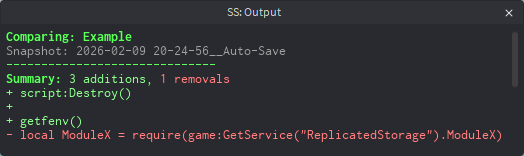
- More: History & Diff
gendocs
Generates Markdown documentation from TypeDef files or source comments.
- Usage: gendocs (Name)
- Result: Create
<TargetModuleName>_Docsnext to the module (same parent), and overwrites contents if it exists. - More: Generate Docs / gendocs
Configuration & Macros
config
View or modify settings.
- Usage: config (Key) (Value)
- Options:
- config: List all settings (Paged).
- config [Key] [Value]: Set a specific setting.
- Aliases: setting, settings, configuration, configs, configurations
theme
Manage UI theme presets and per-key theme overrides.
- Usage:
- theme
- theme list
- theme presets
- theme (PresetName)
- theme apply (PresetName)
- theme set (PresetName)
- theme set (Key) (Color)
- theme clear (Key)
- theme reset
- Aliases: themes, uitheme
- Options:
theme/theme list: Shows current overrides + available preset names.theme presets: Lists preset themes.theme (PresetName): Applies the preset immediately.theme apply (PresetName)/theme set (PresetName): Applies the preset.theme set (Key) (Color): Sets a single override key.theme clear (Key): Removes the override for that key.theme reset: Clears all overrides.- Color formats:
#RRGGBBorR,G,B.
- Preset names (current): Midnight, Dracula-ish, Nord, Catppuccin Mocha, Gruvbox Dark, Tokyo Night, Rose Pine, Light Minimal, Synthwave, Forest, Orange Joe
- Examples:
- theme presets
- theme Midnight
- theme set Button #ff0000
- theme set Text 240,240,240
- theme clear Button
- theme reset
- More: Theme & UI Customization
define
Define a macro with optional dependencies.
- Usage: define [key] [code] (-d “Desc”) (-dep “Deps”)
- Example: define print_hello print(“Hello”) -d “Prints hello”
list
Lists saved macros.
- Usage: list (page)
- Aliases: macros, ls
del
Deletes a macro.
- Usage: del [Name]
export
Exports macros to JSON format (displayed in terminal).
- Usage: export
import
Imports macros from a JSON string.
- Usage: import [JSONString]
sync
Manages Project-level Macros.
- Usage: sync (-init)
- Options:
- sync: Reloads project macros and user commands.
- sync -init: Creates a ProjectMacros module in ServerStorage to share macros with the team.
session
Manages editing sessions (Open scripts, cursor positions, graph state).
- Usage: session [save|load|del|list] (Name)
rules
Installs or opens the Architecture Rules definition file (ScriptSenseRules).
- Usage: rules
reset
Resets all settings to default.
- Usage: reset
Version Control & Data
branch
Manage script branches (Local history).
- Usage: branch (name) (-n)
- Options:
- -n: Create a new branch.
- Aliases: checkout, sw, b
undo
Reverts the last action (Refactors, renames, etc).
- Usage: undo
redo
Redoes the last undone action.
- Usage: redo
test
Generates a TestEZ-compatible .spec file for the target module.
- Usage: test (quick)
- Options:
- quick: Runs the test immediately without creating a file.
runtests
Executes TestEZ tests.
- Usage: runtests
- Aliases: specs, test-all
data (WILL BE DEPRECATED!)
Opens the DataStore Editor.
-
Usage: data (StoreName) (Key)
-
Aliases: ds, datastore
-
Example: