History & Diff
View a script’s snapshot history as a clickable tree, then compare any snapshot against your current code with a color-highlighted diff.
History (history)
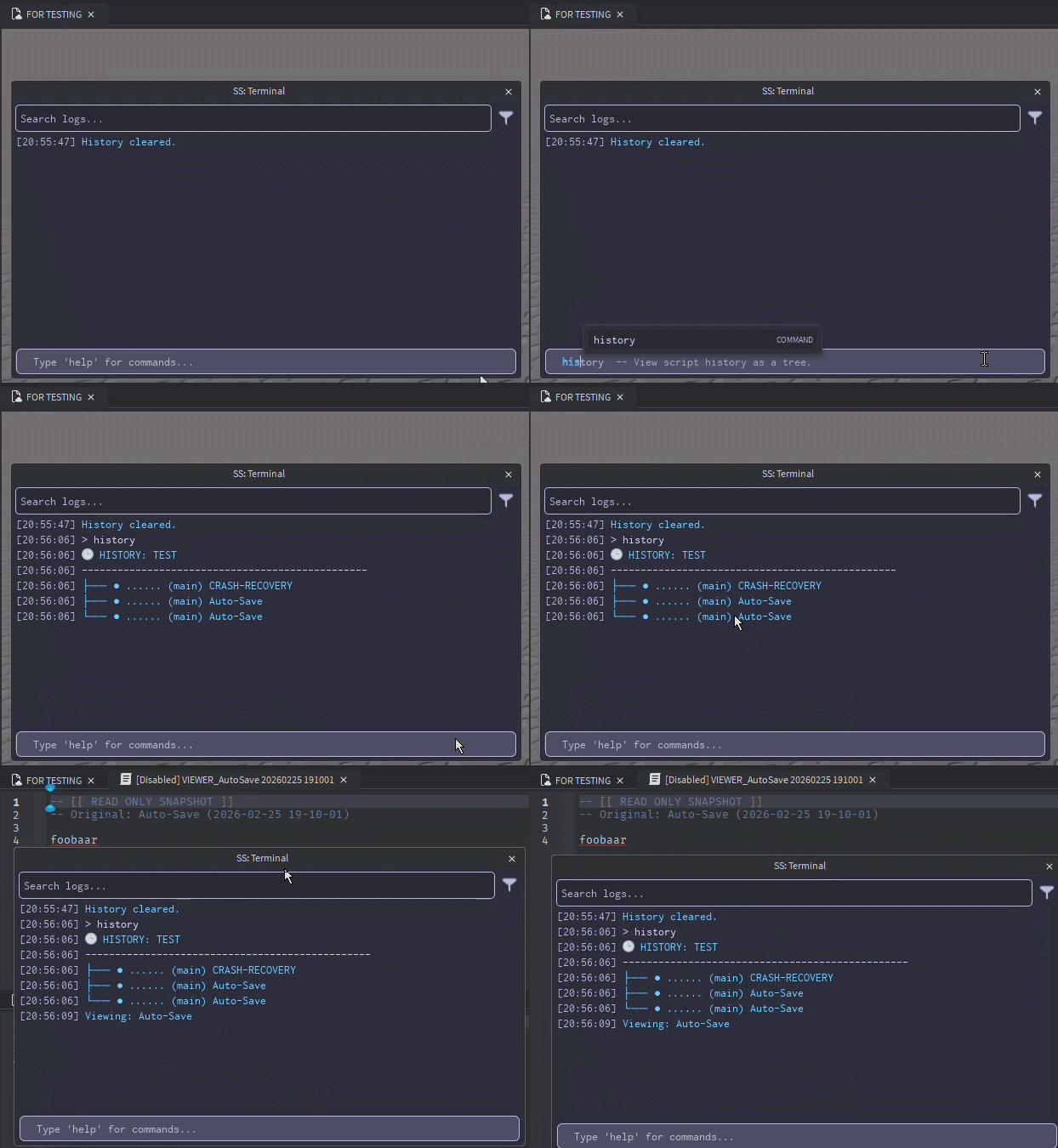
View a script’s snapshot history as a clickable tree. Each entry can be opened in the snapshot viewer.
Screenshot placeholder: terminal output of the tree (with branches + hashes)

Screenshot placeholder: snapshot viewer opened from a history entry

Usage
- Select a Script / LocalScript / ModuleScript in Explorer
- Run:
history
Aliases
logtimeline
What you’ll see
history prints a tree-like list where each line shows:
- a tree connector (
├──,└──, etc.) - a dot (or a 📌 pin if pinned)
- a short commit hash (7 characters)
- the branch name in parentheses
- the snapshot label/message
Each entry is clickable — clicking opens that snapshot in the viewer.
Requirements
You must select a script
history uses your current Selection and only reads the first selected instance.
If you don’t select a script (or the selection isn’t a LuaSourceContainer), it prints:
Error: Select a script.
History must exist
If the script has no saved history, it prints:
No history found.
Branches, pins, and coloring
Snapshots may include metadata:
- Branch (attribute:
Branch, default is"main") - Pinned (attribute:
Pinned) → displays 📌 - CommitID (attribute:
CommitID) → shown as a 7-char short hash
The tree uses different colors for branch names:
mainuses the standard info color- the current active branch is highlighted
- other branches get a deterministic color based on the branch name
Troubleshooting
“No history found.”
History is empty for that script. Make sure history saving is enabled (see AutoSaveEnabled in Configuration) and that you’ve made changes since enabling it.
Clicking entries doesn’t do anything
Entries open the viewer via SnapshotManager:OpenViewer(...). If nothing opens, try reopening Studio or re-running the command after a fresh scan/save.
Diff (diff)
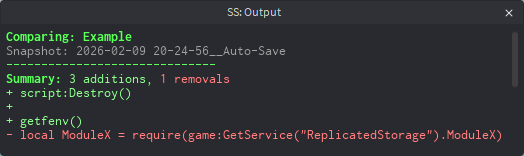
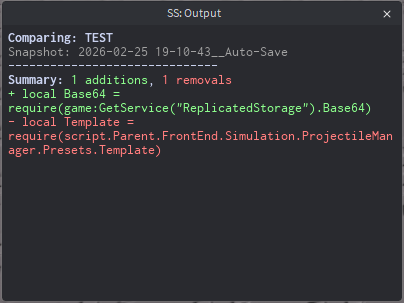
Compare a script with a historical snapshot using RichText coloring (additions are green, removals are red).
Usage
Option A: Compare a script (recommended)
- Select a Script / LocalScript / ModuleScript in Explorer
- Run:
diffdiff (Index)
(Index) chooses which snapshot entry to compare against (defaults to 1).
Option B: Compare from a snapshot
- Select a snapshot StringValue inside ScriptSense history
- Run:
diff
diff will try to locate the matching script and compare it.
Aliases
comparechanges
How the snapshot selection works
When selecting a script
- ScriptSense loads the script’s history list.
- It picks
history[Index](Index defaults to1).
Auto-skip behavior:
If you run diff with no index and snapshot 1 is identical to your current script source, ScriptSense automatically compares against snapshot 2 instead (when available).
Output format
Diff output is shown in the command palette output window and includes:
- A header with the script name and snapshot name
- A summary line:
- X additions
- Y removals
- A unified diff-style body:
- Lines starting with
+are highlighted green - Lines starting with
-are highlighted red
- Lines starting with
Requirements
You must select something
If nothing is selected:
Error: Select a script or a snapshot.
Script/snapshot pair must be resolvable
If ScriptSense can’t determine a valid script + snapshot to compare:
Error: Could not find script/snapshot pair.
Notes & tips
Best pairing with history
- Use
historyto browse and open snapshots - Use
diff (Index)when you want a quick compare against a specific snapshot index
GIF placeholder:
history→ click snapshot → select script →diff 2
Troubleshooting
“Diff Error: …”
This means the diff operation failed internally (it runs inside a protected call). Re-try after reopening Studio or after ensuring history exists for the script.